Xton Access Manager Product Update 2.3.201907142227
Today we released new update to the Xton Privileged Access Manager software. This update adds system user manual as well as options to pinch and zoom and two-fingers screen scroll to sessions started on mobile devices, zoom options for desktop sessions controlled by plus and minus buttons on the session toolbar and logging of commands accepted or blocked by command control restrictive shell.
Added system User Manual
System User Manual guide is designed to provide both Administrators and Users of Xton Access Manager (referred to as XTAM) details about how to locate and use the functionality within the software.
Added the option to pinch and zoom and two-fingers scroll for in-browser sessions on the mobile devices
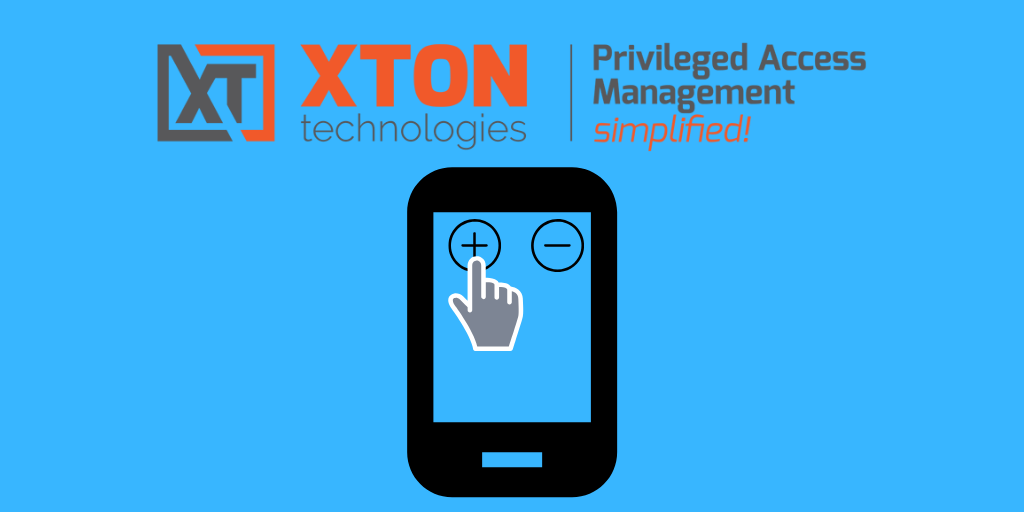
New update made session zooming and scrolling on the mobile devices easier by using familiar pinch-and-zoom and two-fingers-scroll gestures. The option works for all in-browser sessions including RDP, SSH and VNC.
Added the option to zoom-in and zoom-out active in-browser session
This update extended both desktop and mobile in-browser session experiences by adding a capability to zoom the session using plus, minus and restore buttons located on the in-session toolbar. To scroll the screen in the zoom-in mode user can use session scroll bars in the browser on desktop computers or two-fingers scroll on mobile devices
Added support for logging commands accepted executed using command control restrictive shell
The update adds audit logging for commands blocked by command control restrictive shell to allow managers and auditors to review commands that users tend to run on the remote servers that are currently blocked by the command control policies. At the same time, the update adds support to log accepted commands to the session events log to review in-session activities.
https://www.xtontech.com/resources/xton-access-manager-release-notes/
Please review key features documentation and product news using the links below
- Your July 2019 XTON Access Manager Newsletter!
- Xton Access Manager User Manual
- Load Balancer Configuration for Apache HTTP Server with Sticky Sessions
- Getting Started Guide
- Xton Technologies News and Events
- Xton Access Manager How-To Guides
- Explore Our PAM Features and Highlights
- Explore a pre-configured live demo in our environment
- Best Practices Guide provides insights into both Concepts and Design elements for users looking to build out their PAM deployment
The software requires about five minutes to install on a freshly built Windows or Linux server or desktop with 1+ Gb RAM and no pre-requisites. After installation, please follow our Getting Started Guide for step-by-step introduction to the application.
Read the product documentation including Windows and Linux installation instructions as well as Getting Started Guide: https://www.xtontech.com/resources/documentation/
Follow this link for the instructions how to update the existing setup: https://www.xtontech.com/resources/faq/updating-xton-access-manager-version/
Check the software pricing, including options and licensing FAQ: https://www.xtontech.com/store/
We appreciate your feedback and comments about Xton Access Manager and also about handling privileged accounts, passwords, keys and certificates as well as sessions to remote computers in general.
Thank you for your interest in our product.
Xton Technologies team
Download Today!
Xton Access Manager for Privileged Access Management (PAM) provides complete, control for your privileged passwords, secrets, certificates and documents to meet audit requirements while limiting your risk of security breaches. It’s easy to install, affordable, cloud-ready and offers unlimited use and storage
Please fill out this form to receive a download link to get started today, even on your current desktop or laptop. Documentation is available to help or you can email or call us to request a trial extension, discuss questions and share your feedback. We would love to talk to you.