Xton Access Manager Product Update 2.3.201901141010
Today we released new update to the Xton Privileged Access Manager software. Highlights of this update include MFA option for native SSH clients connecting through SSH Proxy, Python example to access XTAM REST API and the option to enforce single sessions established for the same record. Please read details of the update below:
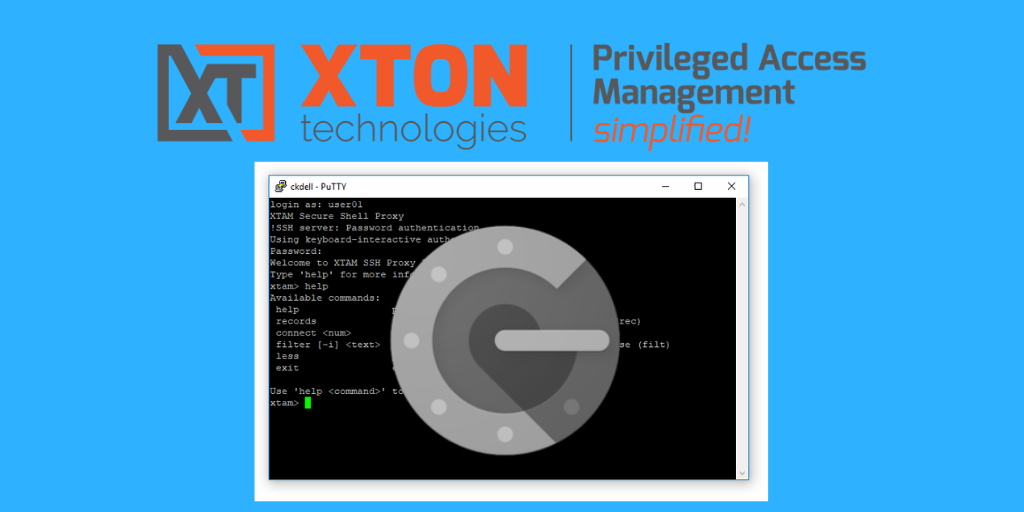
Added Multi-Factor Authentication option for native SSH clients connecting through SSH Proxy
This update brings MFA enforcement for logins using native SSH clients such as PuTTY, Secure CRT or ssh shell. It allows quick implementation of MFA for Unix, Linux and IoT access using familiar workflow significantly improving security of the network.
Current implementation supports Google Authenticator natively while relying on GUI generated one-time tokens (use Profile / Preferences) to support other providers including the option to login to XTAM using SAML identity providers such as AzureAD, ADFS, Okta or Shibboleth. The option could be disabled using xtam.ssh.proxy.mfa.disable=true parameter.
Added Python example to access XTAM REST API
XTAM provides a complete standard based platform agnostic REST API for every configuration and operation function. This week we have extended our sample library with the example of Python script accessing and creating new XTAM data. The sample library now includes examples of communicating with XTAM server using Unix Shell, PowerShell, Groovy, VBScript, Java, JavaScript and Python platforms.
Added the option to enforce exclusive sessions established for the same record
The update introduces a global parameter Exclusive Session that, when enabled, enforces a single in-browser session created for a selected record ensuring that only one person can access a destination server at a time. While this function could have been implemented previously using Checkout option in access workflows, Exclusive Session parameter is an easy way to add a single session per record option system wide without forcing user to add access reason and lock time when accessing servers.
This option is useful in combination with another update that allows record viewers with connect privileges to review currently open sessions for the selected record on the record view screen to track shared account use to the actual user of the system.
Added the option to verify remote Windows host name match with the host name on the record for script execution
The update adds the option to verify remote Windows host name match with the host name on the record before executing any script on the remote computer to detect mis-configured or attacked name resolution service. Manipulating name resolution service is a potentially dangerous attack on the script execution system that might cause password reset executed on the wrong computer. The option to check the computer name with the DNS resolved name creates another barrier to prevent DNS manipulation to interfere with the improper password reset.
The option is enabled by the presence of unchecked checkbox field HostNameDNS in the record type of the record describing destination computer. Checking the field disables the option to verify host for the specific record.
https://www.xtontech.com/resources/xton-access-manager-release-notes/
Please review key features documentation and product news using the links below
- Verify a Record’s Windows Hostname before Task Execution
- RADIUS based MFA – How to Configure in XTAM
- XTAM API Python Example
- Getting Started Guide
- Xton Technologies News and Events
- Xton Access Manager How-To Guides
- Explore Our PAM Features and Highlights
- Explore a pre-configured live demo in our environment
- Best Practices Guide provides insights into both Concepts and Design elements for users looking to build out their PAM deployment
The software requires about five minutes to install on a freshly built Windows or Linux server or desktop with 1+ Gb RAM and no pre-requisites. After installation, please follow our Getting Started Guide for step-by-step introduction to the application.
Read the product documentation including Windows and Linux installation instructions as well as Getting Started Guide: https://www.xtontech.com/resources/documentation/
Follow this link for the instructions how to update the existing setup: https://www.xtontech.com/resources/faq/updating-xton-access-manager-version/
Check the software pricing, including options and licensing FAQ: https://www.xtontech.com/store/
We appreciate your feedback and comments about Xton Access Manager and also about handling privileged accounts, passwords, keys and certificates as well as sessions to remote computers in general.
Thank you for your interest in our product.
Xton Technologies team
Download Today!
Xton Access Manager for Privileged Access Management (PAM) provides complete, control for your privileged passwords, secrets, certificates and documents to meet audit requirements while limiting your risk of security breaches. It’s easy to install, affordable, cloud-ready and offers unlimited use and storage
Please fill out this form to receive a download link to get started today, even on your current desktop or laptop. Documentation is available to help or you can email or call us to request a trial extension, discuss questions and share your feedback. We would love to talk to you.