This article discusses front-end server architecture to make Xton Access Manager available from the outside of the corporate network.
New Xton Documentation Center
Xton help has moved. Please visit the current version of this page for the most recent updates. Our new documentation center can be found at help.xtontech.com.
Front-end Architecture for Production Deployment
For the production deployment of XTAM that could be accessed from the outside of the network we usually recommend to install a reversed proxy (load balancer) on the computer in DMZ to handle the inbound HTTPS traffic with SSL certificates. This reversed proxy will forward all requests to the XTAM server inside the network.
HTTPS configuration with SSL certificate is optional for the trial use to test application functionality. However, if testing with SSL is desirable or for the production use the pre-requisite is to have a fully qualified domain name (FQDN) resolvable to the XTAM reversed proxy computer in DMZ (for example xtam.company.com) and an SSL certificate for this FQDN signed by an internet certificate authority trusted by browsers accessing the system. In this example, XTAM will be accessed at https://xtam.company.com/xtam/

Front-end Architecture for Test or Trial Deployment
The alternative way to test the external setup is to install XTAM itself at the computer in DMZ, optionally load there a trusted SSL certificate mentioned earlier and switch it to bind directly to HTTP(s) port. It is slightly easier to do and will demonstrate XTAM functionality for trial purposes.
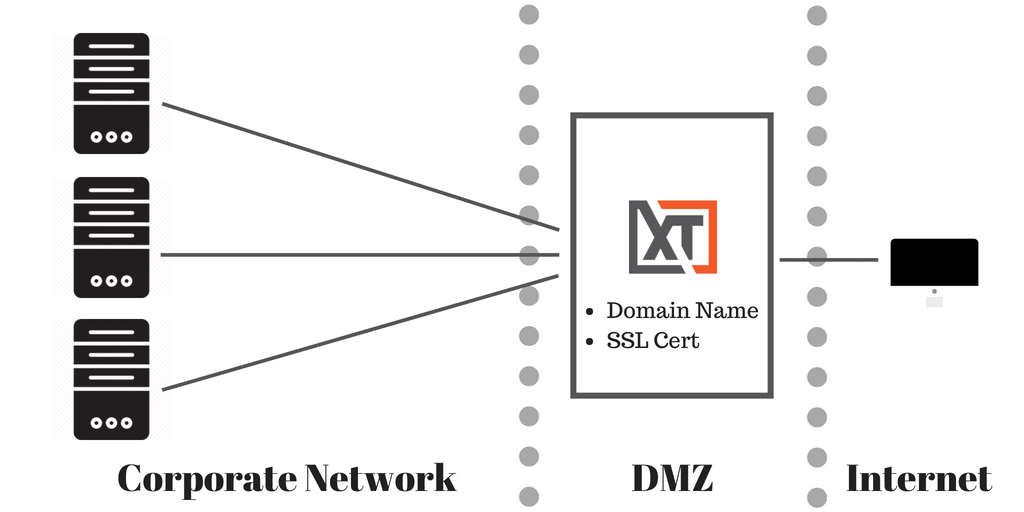
The discussion below assumes two-server setup with one computer with reversed proxy at DMZ and the other one with XTAM behind the firewall. XTAM licensing does not count load balancer / reversed proxy computer as a node to purchase.
Additional Considerations
When forwarding WEB traffic from a reversed proxy to XTAM server using HTTPS protocol make sure that XTAM uses a trusted certificate or disable a certificate check on the load balancer or direct the traffic on the unsecured HTTP port (XTAM listens to an unprotected HTTP protocol on the port 8080 for test purposes). Below is an FAQ article to replace generated self-signed certificate of the XTAM server with the one trusted by the load balancer
https://www.xtontech.com/resources/faq/replacing-self-signed-certificate-with-trusted-certificate/
Note that XTAM server and load balancers could be installed on similar or on different operating systems (for example, Windows hosting XTAM server and Unix hosting the reversed proxy / load balancer). Also, it is possible to utilize an existing load balancer in case the one is already in place (for example F5).
If you plan your users to only use WEB GUI and WEB Sessions then standard HTTPS at port 443 with SSL is enough. Make sure to enable sticky sessions on the load balancer because RDP and SSH sessions are stateful.
Consider enabling Websockets since they bring better performance for WEB Sessions (some load balancer might require them enabled separately).
If you plan your users to use native clients (Putty, mstsc, etc) then you need to open (and load balance) XTAM Proxy ports (default are 3388 for RDP proxy, 2022 for SSH Proxy, 8081 for HTTP Proxy).
Keep in mind that there is a constant background port scanning noise in the Internet targeting all ports and all protocols. These events appear in the Audit Log as failed logins with IP address and a user. Deployments might implement white list filtering expected visitors on the load balancer. Deployments might also implement black listing abusers reported in the audit log. Both white and black listing is expected to be on the load balancer side.